Call, text or mark a lead straight from your lead alert
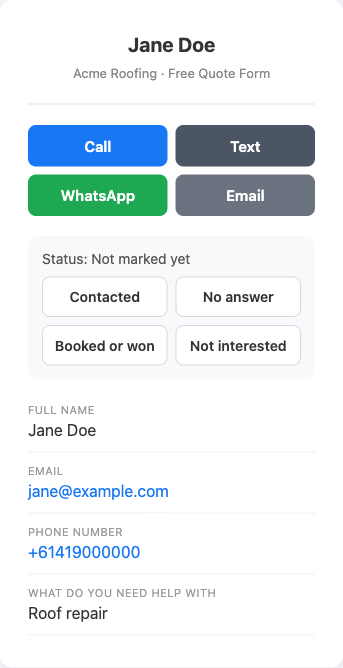
Every lead LeadSync delivers has its own lead page. From it you can call, text, WhatsApp or email the lead in one tap, then mark how it went. You can reach it from your email, SMS and WhatsApp alerts.
Switch on the buttons in your lead emails
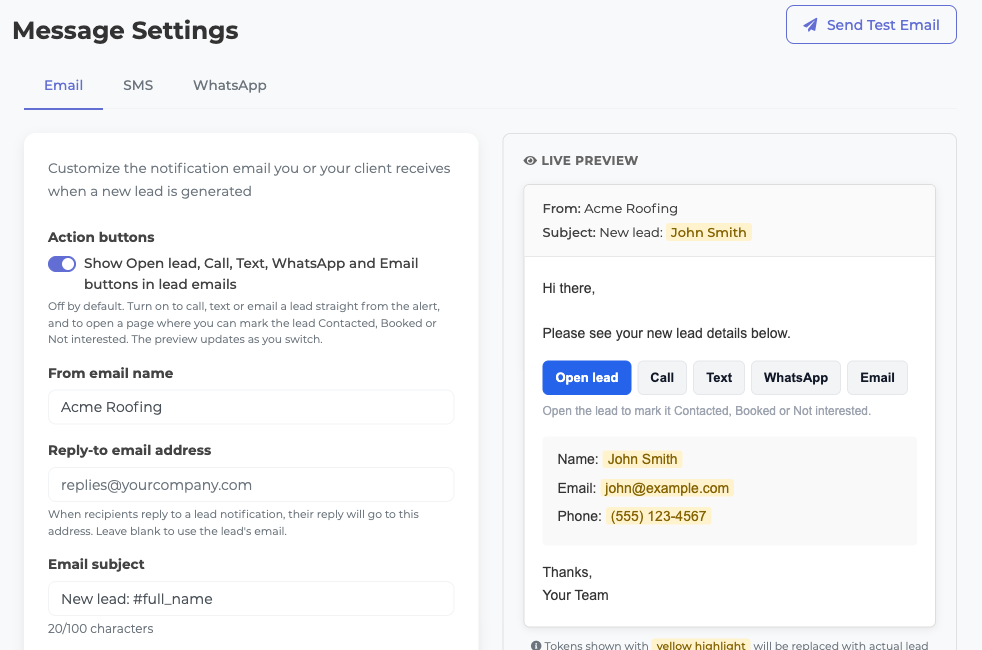
The buttons in lead emails are off by default. To switch them on:
- Click Message Settings in the left sidebar.
- On the Email tab, turn on Action buttons at the top. The Live Preview on the right shows the buttons straight away.
- Scroll down and click Save Changes.
From the next lead, your emails show a row of buttons above the lead's details:
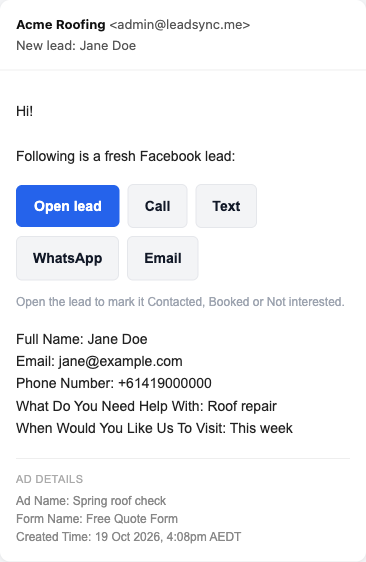
- Open lead opens the lead page.
- Call rings the lead from your phone.
- Text, WhatsApp and Email open that app with a short message ready to send, which you can edit first.
You only see a button when the lead gave that detail. WhatsApp appears only when the phone number includes a country code (for example +61 or +1).
The setting applies to every lead email from your account, including emails you send to clients. To go back to plain emails, turn the switch off and save.
SMS and WhatsApp alerts
Nothing to switch on here:
- SMS alerts include the link to the lead page whenever it fits in the same text message, so it never costs an extra SMS credit.
- WhatsApp alerts have an Open lead button under the message.
Mark how it went
The lead page has four status buttons: Contacted, No answer, Booked or won and Not interested. Tap one to save it. You can change it any time.
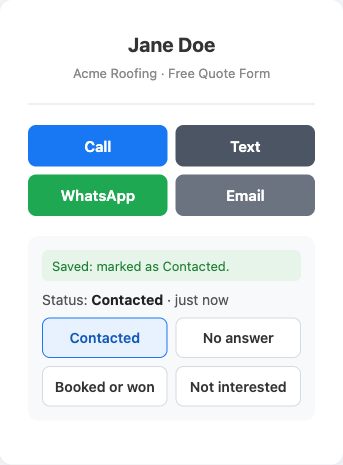
- The status only changes when someone taps a button on the page. Email security scanners that open links can't change it.
- If Lead Quality is on, the first time you mark a Facebook or Instagram lead Booked or won, LeadSync tells Meta the lead converted. This helps Meta find more people like them.
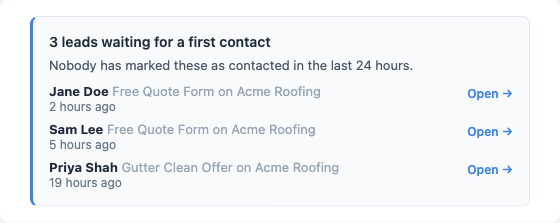
- If you get the daily or weekly lead report (Account > Settings > Lead Digest Emails), it lists leads from the last 24 hours that nobody has marked yet. That section appears once you've used a status button at least once.
Change the message that's ready to send
By default, Text, WhatsApp and Email start with: "Hi {first name}, this is {Page name} following up on your request."
To use your own message, go to Message Settings > Email > Saved reply. You can use #first_name and #page, up to 300 characters. Then click Save Changes.
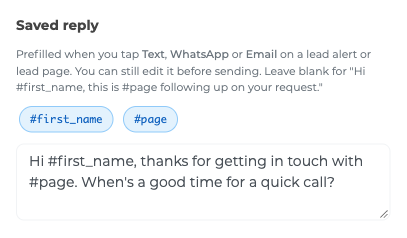
Your saved reply is used everywhere these buttons appear: in lead emails and on the lead page you open from SMS and WhatsApp alerts.
Good to know
- Lead page links work for 30 days.
- No login is needed, so anyone you forward an alert to can open its lead page.
- If your lead emails use your own From email name (for example your agency or your client's business), the lead page doesn't show any LeadSync branding.
FAQ
Why don't I see the buttons in my lead emails?
They're off by default. Switch on Action buttons in Message Settings as shown above. The Send Test Email sample doesn't include them, so check the Live Preview or send yourself a test lead.
Can I switch the buttons on for some connections and not others?
Not yet. The setting covers every lead email from your account.
Do the buttons change anything when I click them in the email?
No. The email buttons only open the lead page or your phone's call, text, WhatsApp or email app. Statuses are saved only when you tap them on the lead page.