Testing Your Lead Form Connection with Facebook's Tool
- Go to Facebook's Testing Tool Page
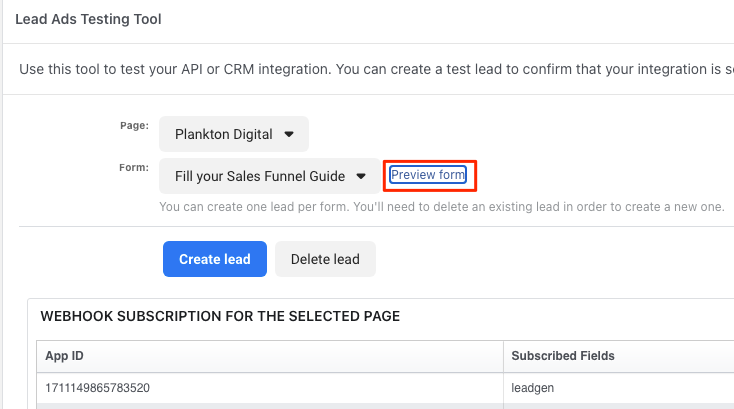
- Select YOUR Page and Form from the drop down, making sure that it's the same combination as what you've setup in LeadSync in your Lead Forms section.
- Click the Preview form link.
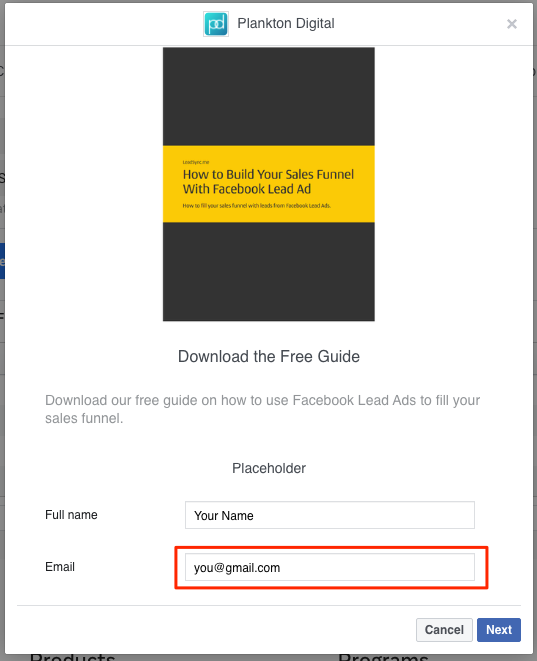
- Fill in your form with a valid email address and submit,
- If you see an error that says "A lead has already been created for this form. To create a new lead, please delete this one." then click the Delete button and try again.
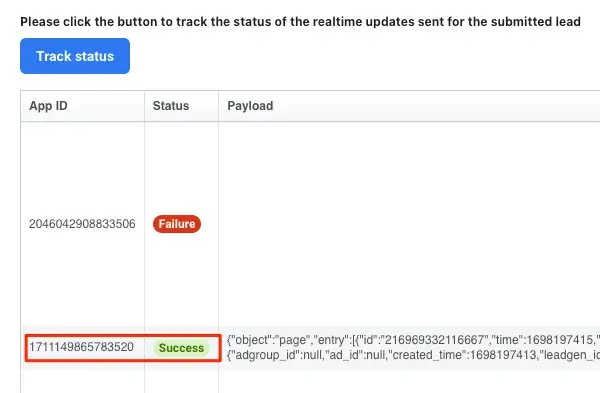
- Click then Track Status button.
-
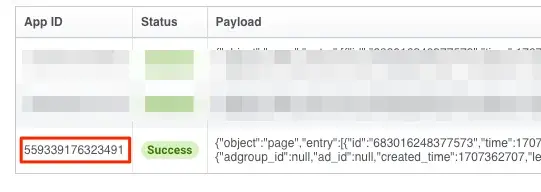
You should see one of the following success messages:
-
NOTE: If the status says "pending", wait 10 seconds then click Track Status again.
- LeadSync uses two Apps, Personal Account Access: 1711149865783520 and Business Manager Access: 559339176323491. Please check your Accounts section to see which connection type you have used.
- You should receive a test lead to the connection you've setup to this Page/Lead combination.
- If you see an error next to one of these, or of you don't receive the test lead please send a screenshot to support.
Send and delete a test lead from inside LeadSync
Facebook only allows one test lead per form, so you'll see "A lead has already been created for this form" if one is still there. If your form is connected through LeadSync, you don't have to go back to Facebook's tool to clear it:
- Open your Lead Forms list.
- On the form's ⋯ menu, click Delete Test Lead to clear the existing test lead, then Send Test Lead to send a fresh one.
A test lead can only be deleted by whoever created it. If the existing one was created in Facebook's own Lead Ads Testing Tool, LeadSync can't remove it, and the Delete Test Lead button will point you back to the testing tool to delete it there.
Full Testing Guide
For a more detailed guide on testing your Facebook lead ads, see our Lead Ads Testing Tool article on the LeadSync blog.