Customizing the Facebook Lead Ad Notification Email
You can customize your Facebook Lead Ads notification email by going to Message Settings in the left sidebar.
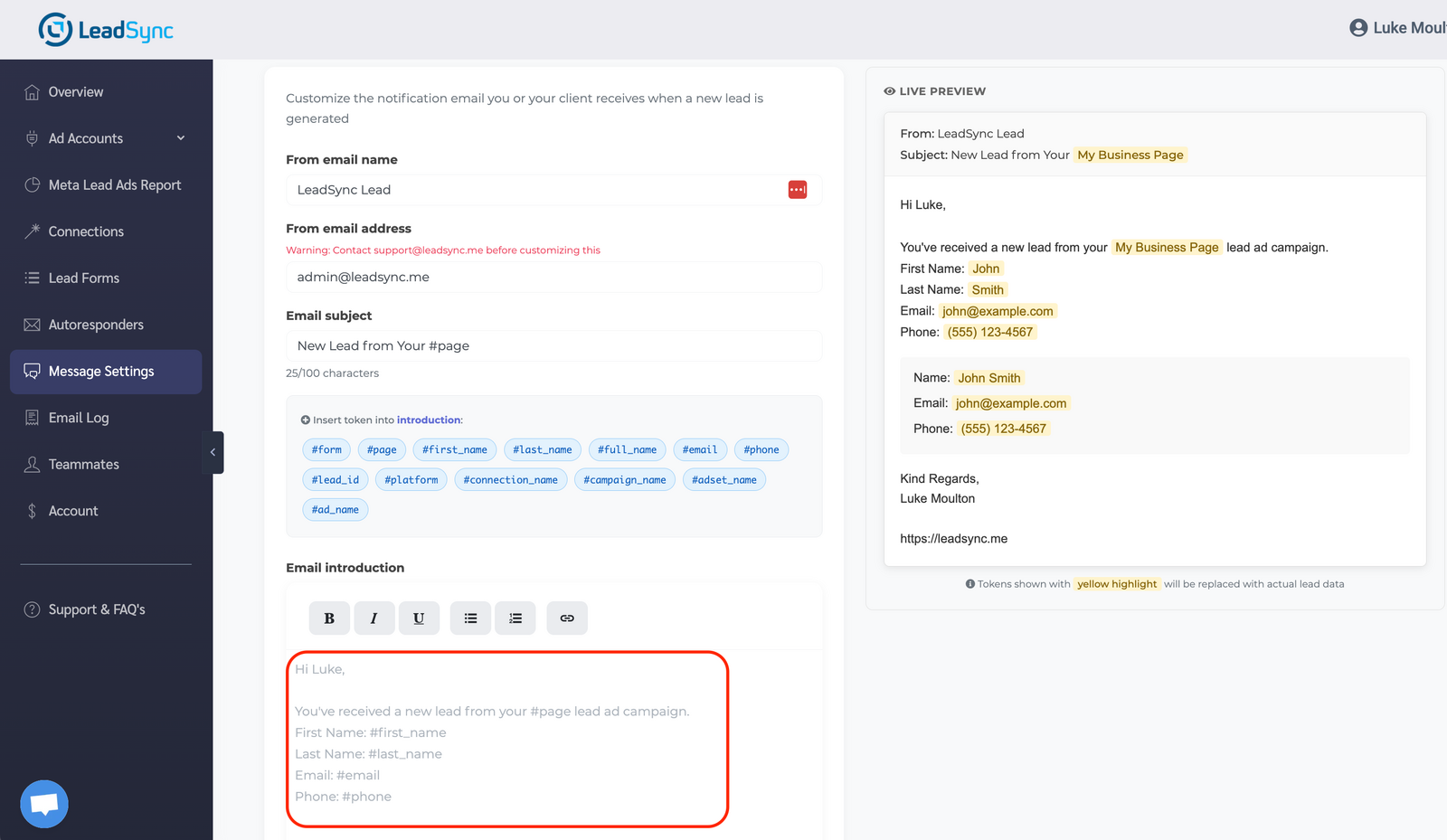
- From Name: this should be a name that you can easily identify as a lead. The from email address will be "admin@leadsync.me". This can only be changed if you're on the Unlimited plan.
- From Email Address: this can only be customised for Unlimited account holders. Please contact LeadSync support to enable this.
- Email Subject: you can use tokens to automatically insert lead details. See the full list of available tokens below.
- Email Introduction: a short intro that will appear before the lead details. You can use the same tokens as the subject line. You can also, for example, add "https://wa.me/#phone" to the introduction so that you can contact the lead via WhatsApp.
- Email Signature: nice to have if you're generating leads for another business.
- Logo: another nice touch if you're creating leads on behalf of another business.
Once you've customized your Notification Email, here's how to test it.
Action Buttons
Turn on Action buttons at the top of the Email tab to add Open lead, Call, Text, WhatsApp and Email buttons above the lead's details. They're off by default. See Call, text or mark a lead straight from your lead alert for what each button does.
Showing Ad & Campaign Fields
To keep lead emails easy to read, the ad and campaign tracking fields (Ad ID, Ad Name, Campaign Name, Ad Set Name, timestamps, Platform, Form Name, Page Name, and so on) are hidden by default, so the details you actually follow up on (name, email, phone, and your form answers) aren't buried under a wall of IDs. If you'd like the tracking fields in your emails too, you can switch any of them back on:
- In Message Settings on the Email tab, scroll past Subject, Introduction, and Signature to Show fields on email body.
- The fields are organised into groups:
- Ad metadata: Ad ID, Ad Name, Ad Account ID, Ad Account Name, Ad Set ID, Ad Set Name, Campaign ID, Campaign Name
- Timestamps: Created Date, Created Time
- Other: Platform, Form ID, Form Name, Page ID, Page Name, Leadgen ID
- Tick any fields you want to appear in the email. Use the Show all / Hide all links above the groups for a one-click sweep.
- Click Save Changes.
Form-submitted fields are always shown
Name, Email, Phone, and any custom questions on your lead form will always appear in the email. Those are the fields you need to follow up, so these toggles only control the optional ad and tracking fields.
Fields you switch on appear in a smaller grey Ad details section below the lead's answers, so the answers always come first. Dates and times are shown in your account's timezone (Account > Settings).
These settings only affect the email body. Webhook destinations, CRM connections, Google Sheets, and the CSV attachment continue to receive every field, which is useful when you want a clean inbox but a complete record in your CRM.
Saved Reply
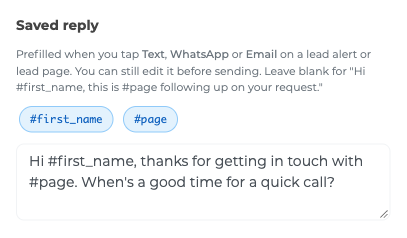
If you use the action buttons, Text, WhatsApp and Email open with a short message ready to send. By default it says "Hi {first name}, this is {Page name} following up on your request."
To write your own, fill in Saved reply on the Email tab and click Save Changes. You can use #first_name and #page, up to 300 characters. You can still edit the message before you send it.
Available Tokens
You can use the following tokens in the Email Subject and Email Introduction fields. They will be automatically replaced with the actual lead data when a notification is sent.
| Token | Description | Example |
|---|---|---|
#first_name |
Lead's first name | John |
#last_name |
Lead's last name | Smith |
#full_name |
Lead's full name | John Smith |
#email |
Lead's email address | john@example.com |
#phone |
Lead's phone number | (555) 123-4567 |
#form |
Name of the lead form | Contact Form |
#page |
Name of the Facebook Page | My Business Page |
#lead_id |
Facebook lead ID | 12345 |
#platform |
Ad platform (Facebook, Instagram, etc.) | |
#campaign_name |
Ad campaign name | Summer Campaign |
#adset_name |
Ad set name | Lookalike Audience |
#ad_name |
Ad name | Video Ad #1 |
#connection_name |
Name of the connected integration | My CRM |
Example subject line: New #form lead from #page - #full_name
FAQ
Do custom lead form questions appear in the notification email?
Yes. All fields from your Facebook lead form, including custom questions, are automatically included in the Lead Details section of every notification email. You don't need to configure anything extra. For example, if your form asks "Which area is your home located?" the lead's answer will appear alongside their name, email, and phone number.
Can I use custom lead form questions as tokens in the subject line?
No. Only the standard tokens listed above can be used in the subject line and introduction. Custom questions are automatically included in the lead details section of the email body.
How do I preview what my notification email will look like?
Go to Message Settings and click the Send Test Email button. This will send a sample notification to your email using placeholder data. The sample doesn't include the action buttons; the Live Preview on the right shows them when they're switched on.
Can I change the "From" email address?
The default from address is admin@leadsync.me. Custom from addresses are available on the Unlimited plan. Contact support to enable this.
Can I show ad and campaign metadata in the email?
Yes. Ad and campaign tracking fields are hidden by default to keep emails readable. To switch them on, go to Show fields on email body in Message Settings and tick any of: Ad ID, Ad Name, Ad Set Name, Campaign Name, Created Date, Created Time, Platform, Form Name, Page Name, Leadgen ID, and more. Use Show all to include everything in one click. Form-submitted fields (Name, Email, Phone, custom questions) are always shown.
Complete Guide
For the full notification setup walkthrough covering email, SMS, and Slack with video and comparison table, see our Facebook Lead Ads Notifications Setup Guide on the LeadSync blog.